
Sending an invite
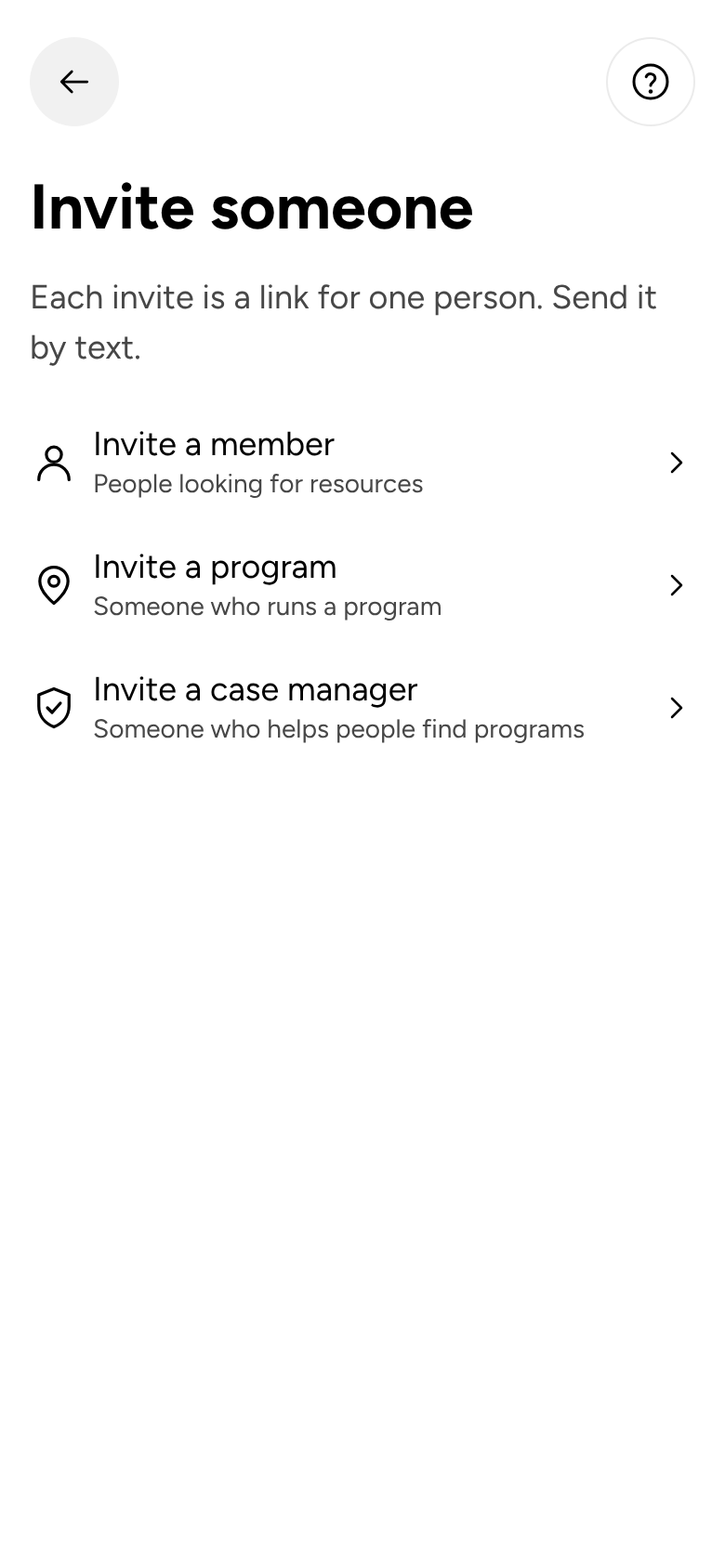
Each invite is a link for one person. You make the link in Pam and send it by text from your own phone.
Who can invite whom
| You are | You can invite |
|---|---|
| A case manager | Members, programs and other case managers. |
| A program lead | Members and programs. |
| A super admin | Members, programs and case managers. You also choose which city the person is for. |
A case manager
Members, programs and other case managers.
A program lead
Members and programs.
A super admin
Members, programs and case managers. You also choose which city the person is for.
Make an invite
Tap “Invite someone”. A case manager finds it on Home and in Profile. A program lead finds it in the + menu, where it reads “Invite someone to Pam”. A super admin finds it in Profile.
Choose who you are inviting: a member, a program or a case manager.
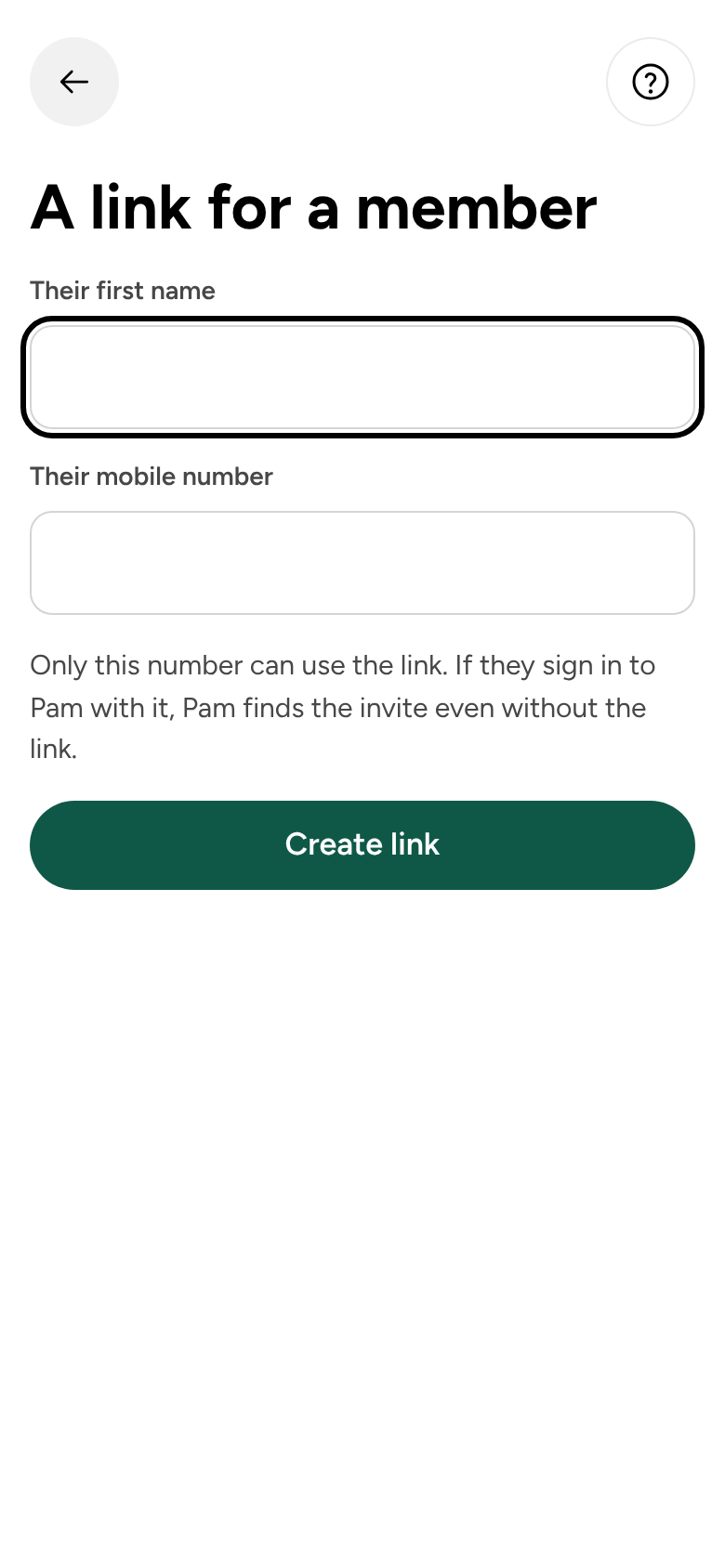
Type their first name.
Type their mobile number, with the area code.
For a program or a case manager, type their email too.
Tap “Create link”.
Tap “Send the link”. Pick how to send it, or it copies the link for you to paste.
Pam does not text the link for you. You send it. When you invite a case manager or a program lead, Pam also emails them the link at the address you typed. The screen also gives a code, in case the person is on the phone with you: “Read them this code instead.”
What to know about a link
If a link has expired, make a new invite. Tap “Make another”. The person can also tap “Email me a new link” on the page that says the link has expired.
A phone number that already has a staff account cannot take a staff invite. The person will see “This number is already in Pam”.
Seeing who joined (super admins)
Super admins can see every invite. Tap “Invited people”. Each row says who invited them. “Active” means they joined. “Link open” means they have not used it yet. “Link expired” means the 30 days ran out.
Still stuck?
Write to us at hello@joinpam.org. Tell us what happened and what you see on the screen. A person at Pam reads every message.