
Signing a program’s rules
Some programs ask you to read and sign their rules before you visit. In Pam, you do it on your phone. You sign your name once, and after that signing the next one takes one tap.
What a policy is
A policy is a program’s rules. For example: “Bring ID.” A program can have one policy or several. You read each one before you sign it.
How you sign
Open the program in Pam. Tap “Policies to sign”.
Read the policy.
Tap “Sign”. Draw your name with your finger, or tap “Type my name instead” and type your full name. Typing counts the same as drawing.
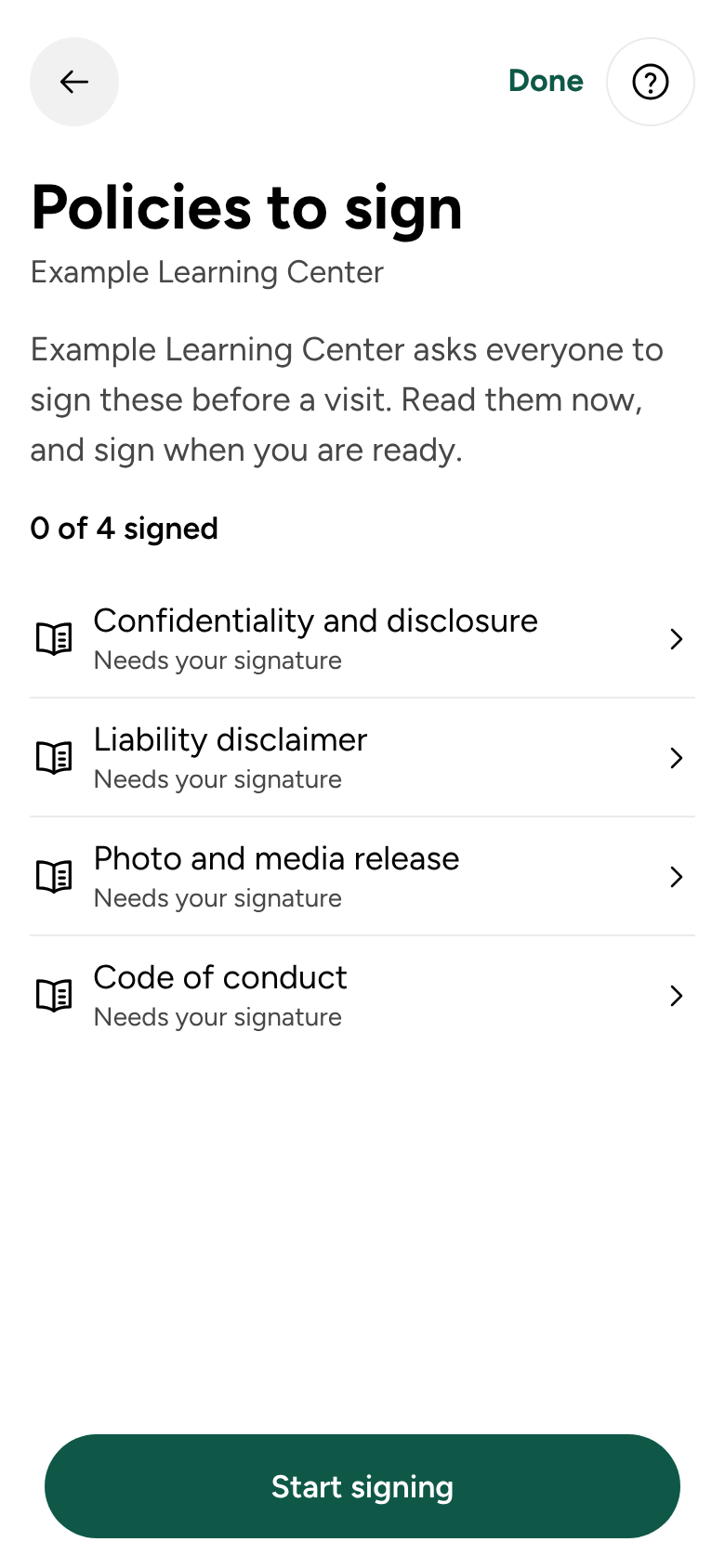
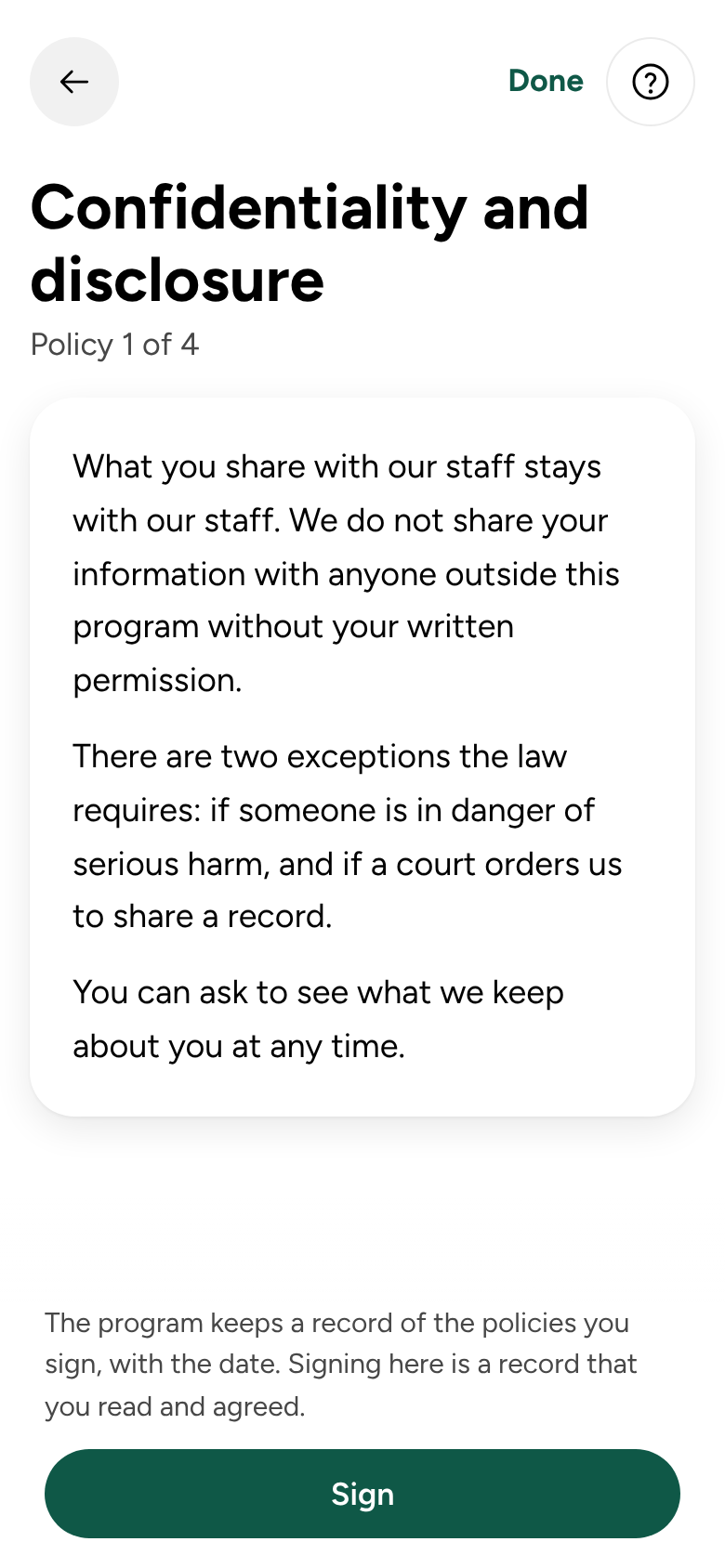
You do this once. Pam keeps your signature, so the next policy takes one tap.
What a program sees
A program sees your first name and the date you signed. It never sees the picture of your signature.
A policy does not change after you sign
A policy is never changed after you sign it. If a program writes a new version, Pam asks you to read and sign the new one.
What your signature means
Your signature in Pam is a record that you read the policy and agreed to it. It is not a legal signature.
For programs
Add your policies in your program, under “Policies for participants”. Members read and sign them in Pam. For each person you see their first name and the date they signed. You never see their signature. If you write a new version, members are asked to sign again.
Still stuck?
Write to us at hello@joinpam.org. Tell us what happened and what you see on the screen. A person at Pam reads every message.